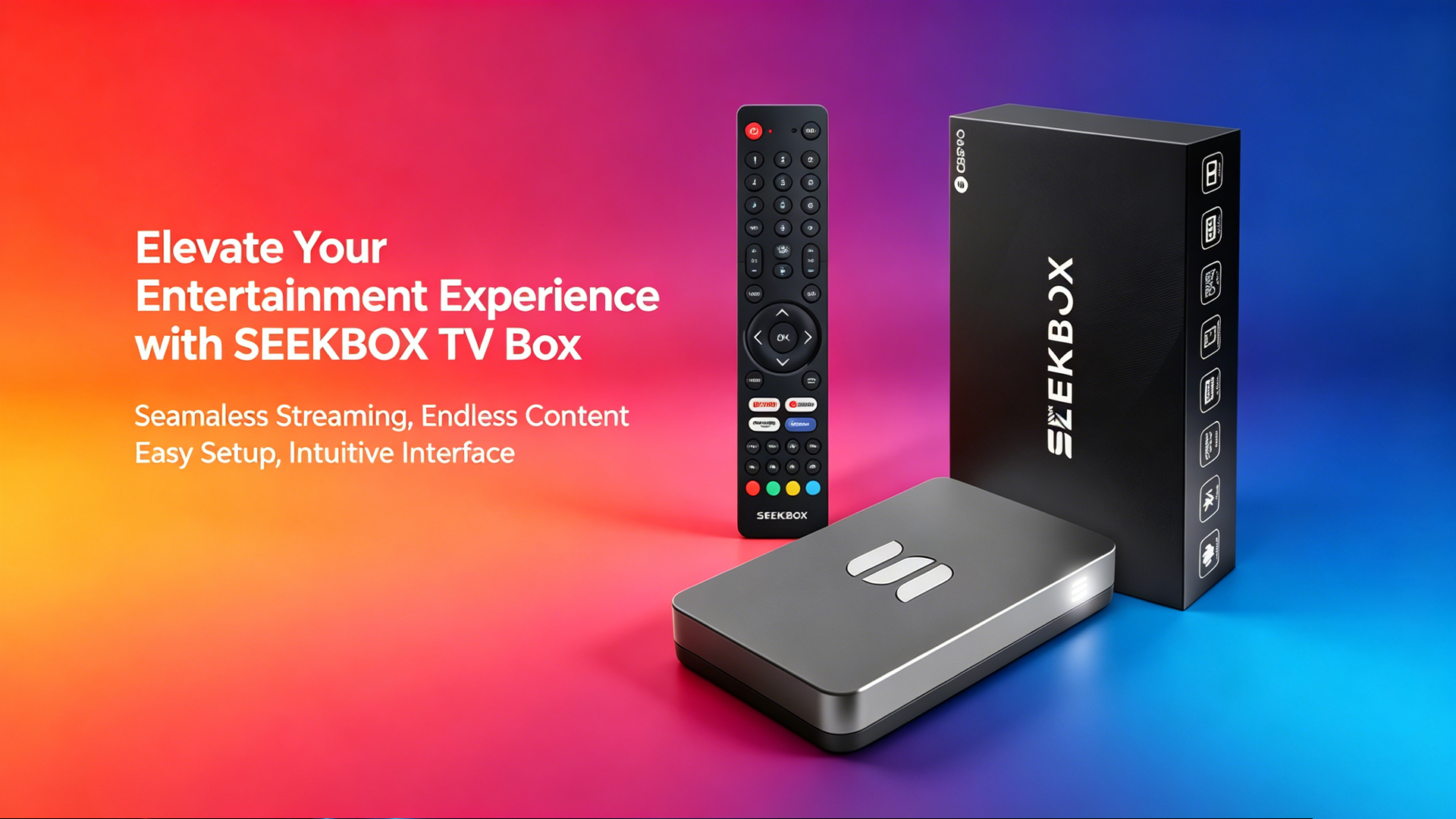
5 Tips to Optimize Your SeekBox Streaming Experience
Maximize picture quality, reduce buffering, and enhance your overall viewing experience with these expert tips.
1. Optimize Your Network Connection
A stable internet connection is the foundation of smooth streaming. Here's how to ensure optimal performance:
- Use Ethernet: Whenever possible, connect your SeekBox directly to your router with an Ethernet cable for the most stable connection.
- Position Your Router: Place your router in a central location, away from walls, metal objects, and other electronic devices that can cause interference.
- Bandwidth Management: Avoid downloading large files or using bandwidth-intensive apps on other devices while streaming.
Pro Tip: For 4K streaming, ensure you have at least 25 Mbps download speed.
2. Adjust Video Quality Settings
Fine-tuning your video settings can significantly improve your viewing experience:
- Auto Quality: Enable auto-quality mode in streaming apps to automatically adjust based on your connection speed.
- 4K Content: Manually set to 4K/UHD if you have a compatible TV and stable high-speed internet.
- Refresh Rate: Match your TV's native refresh rate (60Hz or 120Hz) for smoother motion.
3. Clear Cache and Manage Storage
Over time, cached data can slow down your device. Regular maintenance keeps things running smoothly:
- Clear App Cache: Go to Settings > Apps > Select App > Clear Cache
- Uninstall Unused Apps: Remove apps you no longer use to free up storage space.
- Restart Regularly: Power off and restart your SeekBox weekly to refresh system memory.
4. Keep Software Up to Date
Regular updates include performance improvements and bug fixes:
- Auto Updates: Enable automatic firmware updates in Settings > System > Updates.
- App Updates: Keep streaming apps updated through the Google Play Store.
- Check Manually: Periodically check for updates if auto-update is disabled.
5. Optimize TV Display Settings
Your TV settings can greatly impact picture quality:
- Picture Mode: Use "Movie" or "Cinema" mode for the most accurate colors.
- HDMI Settings: Enable HDMI 2.1 for 4K@120Hz if your TV supports it.
- Game Mode: Enable game mode when playing games to reduce input lag.
Pro Tip: Calibrate your TV using the THX Optimizer or similar built-in calibration tools.